AI Emails That Sound Like You
How to teach AI to draft emails in your own voice by building a Claude skill, so you stop editing drafts for longer than it would take to write them.
Skip to the prompt ↓Why AI Emails Feel Off
We all send hundreds of emails every week, so having AI help draft them is an obvious time-saver. Here's the irony: people are getting really good at sniffing out AI-written emails (cough, em dashes). A poorly prompted AI left to its own devices turns out drafts that read as lazy.
I'm someone who believes in the fine art of a well-crafted email, so the output was never up to my standards. I ended up editing so intensely that it took about as long as writing the email myself. Womp.
So I built a Claude skill called draft-as-jessie. I give it a little context (who I'm writing to, what I want out of it), and it follows a very long, very specific set of instructions to draft the email in my own style. It asks for more details when it needs them, and it can drop the finished draft right into my Gmail drafts folder.
(It's not perfect. But it definitely sounds like me, and it's close to what I'd write.)
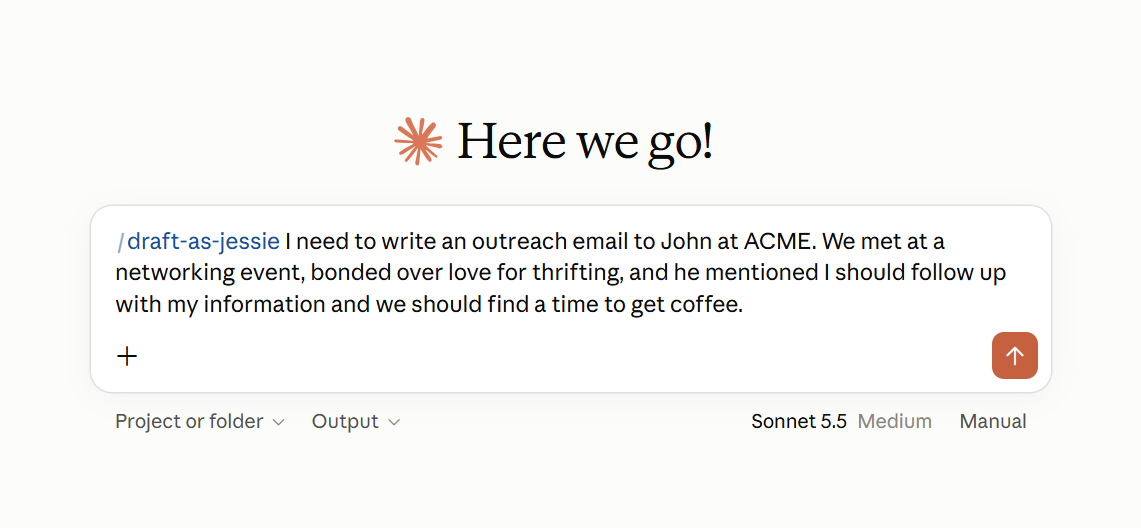
Me using the skill: one slash command, a few details about who I'm writing to, and off it goes.
This guide shows you how to build yours.
Claude 101: Skills
A skill is just a text file of instructions that Claude can follow. Think of it like a recipe. Claude has some pre-built skills, but you can also build your own. You can write the instructions by hand, or (my preference) chat back and forth with Claude about what you want and let it write the file for you.
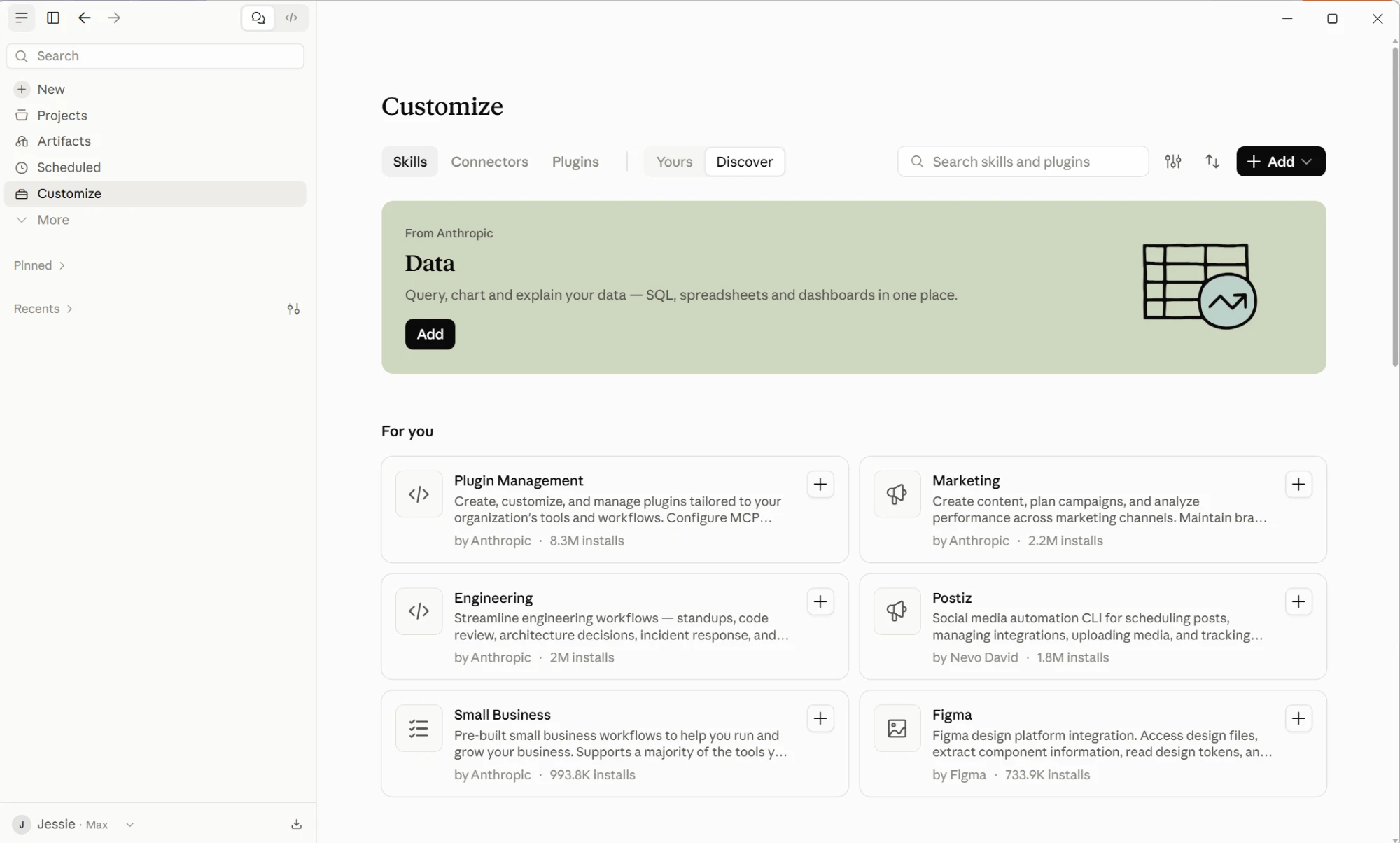
To find your skills, click Customize in the sidebar, then Skills. Yours holds the ones you've built, and Discover has pre-built ones.
-
To use a skill, call it by name.
Type
/skill-nameinto the chat, or hit the + button. - Or just talk normally. If what you say matches the skill's description (like "draft a note to Katie"), Claude should pull it in on its own.
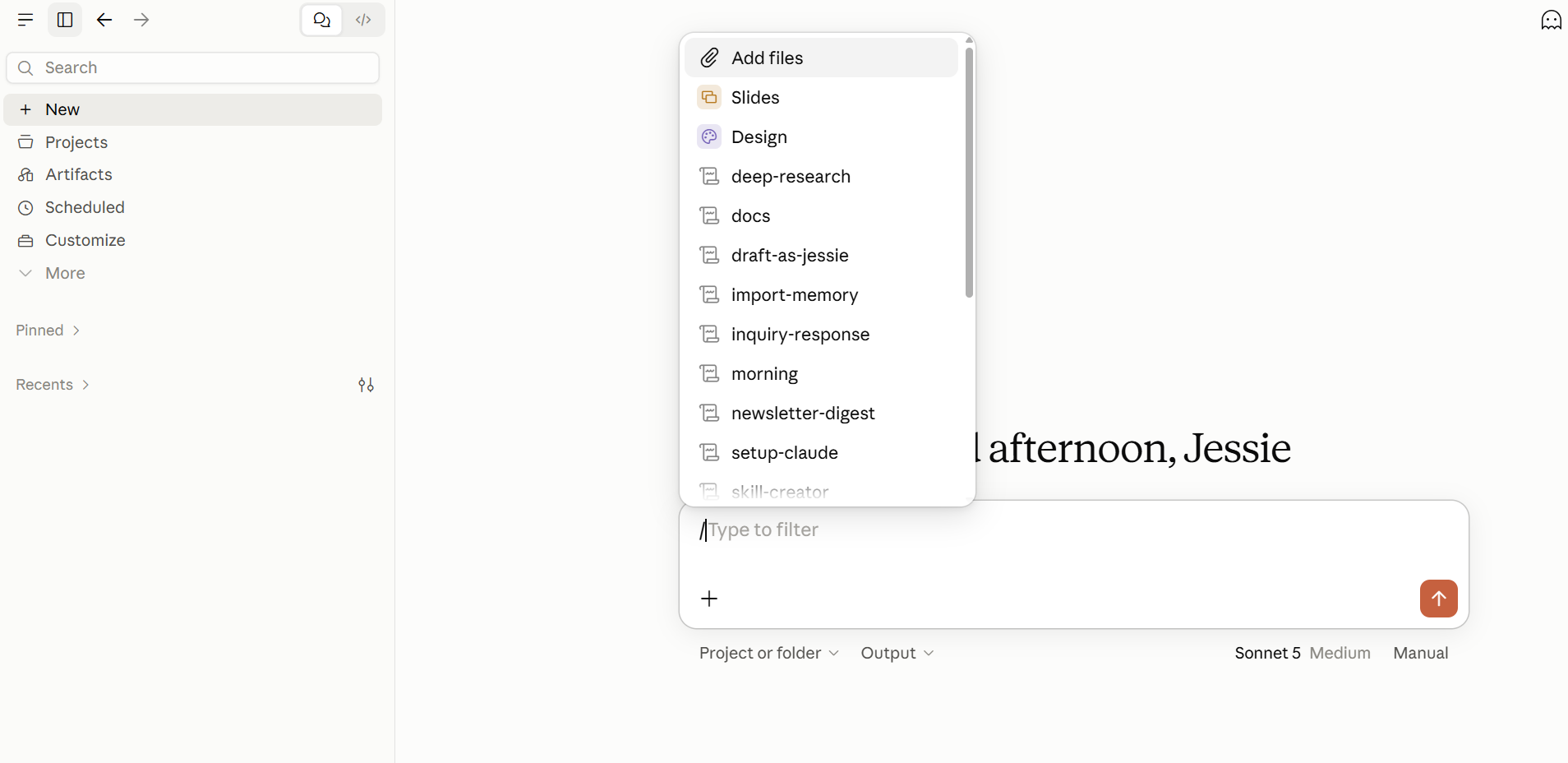
Type / or hit the + button and your skills show up in a list. Pick one to use it.
Before You Start
Three quick things, and only the first one is required:
- A Claude account. I use a paid plan, and this guide is built on that. Grab one here: claude.ai/subscribe
- Your email connected (optional, but helpful). This lets Claude read your sent messages. Click Customize in the sidebar, then Connectors, and enable Gmail. A green check means you're connected. Not comfortable with that? No problem, you'll paste example emails in instead.
- A fresh Claude chat. A clean chat keeps things focused. That's where you'll paste the prompts below.
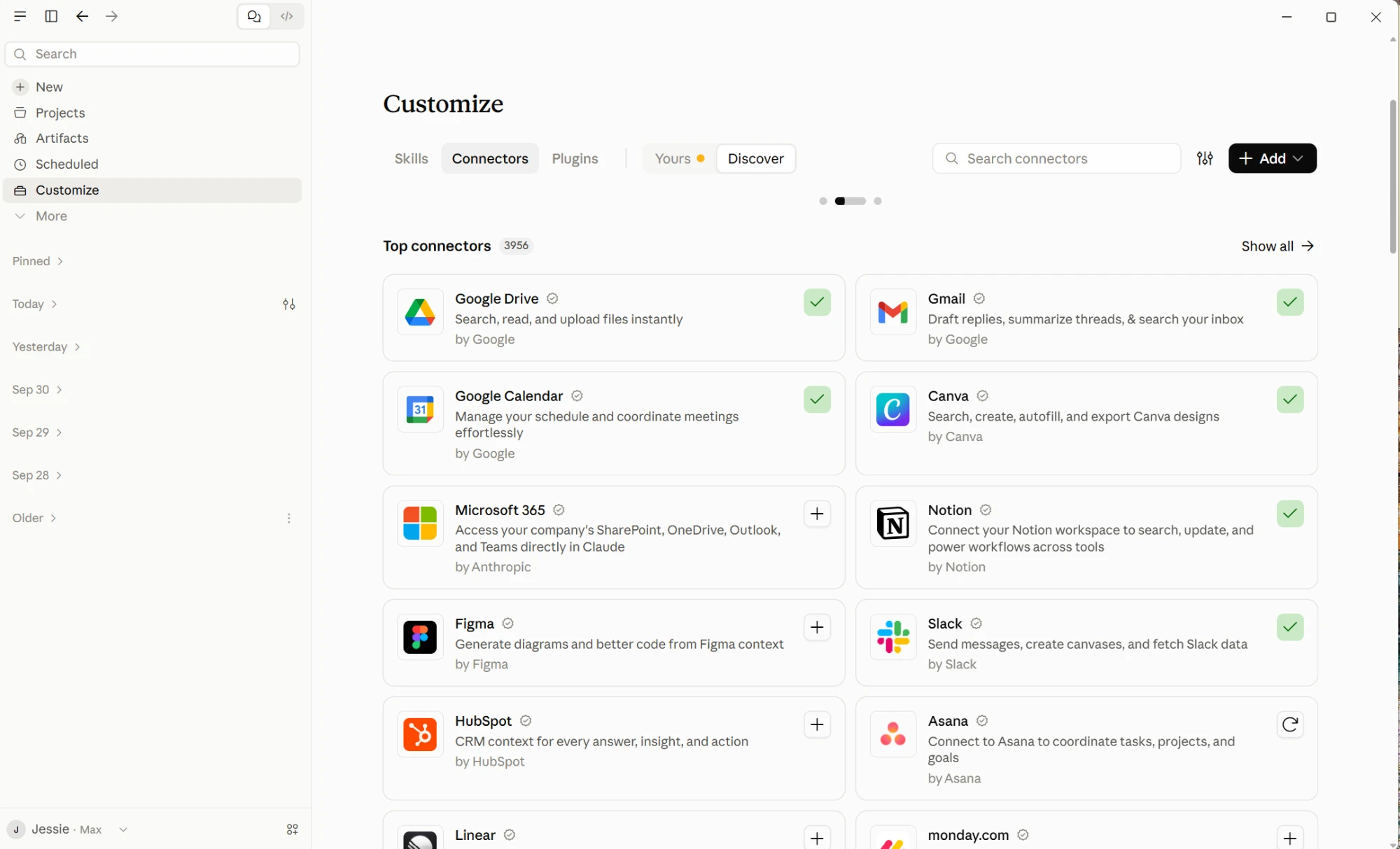
Customize, then Connectors. Gmail is the second card in the top row, and the green check means it's on.
Build It in Five Steps
- Train it on your real emails.
Paste in the Part 1 prompt from the next section. Claude goes through your sent emails and pulls out the sentences you reuse, the rules you follow without realizing it (how you open, how you close, your punctuation habits), and the 3 to 4 types of email you send most. It will pause and review its findings with you, so this is where you decide which version of your writing is the real you. - Build the skill.
Once you're aligned, paste in the Part 2 prompt. It tells Claude to generate the skill with three rules baked in: ask for missing info instead of inventing it, refine your draft instead of rewriting it, and run a checklist before handing anything back. - Stop and test it yourself.
Give the skill a real email to practice on, then make the edits you'd make if you were actually going to send it. Send Claude two things: your written feedback, and the version you would really have sent. Ask it to find the differences and use them to improve the skill. Test early and often (build a usable first version, try it, then keep going). - Give it templates and a north star.
If it keeps reinventing sentences you use all the time, give it explicit permission to lift lines from your emails word for word. Then paste in a few emails you're proud of and tell it to treat them as what "good" looks like. - Put it in a QA loop, then keep feeding it.
The Part 2 prompt sends Claude through rounds of drafted-versus-sent comparisons without you prompting each one. After that, whenever you have time, draft with Claude and send back the final version so the skill keeps learning.
Steal This Prompt
Both parts are below, ready to copy.
I want to build a skill that drafts emails in my voice. Start by going through examples of my real emails:
- [email connected] Go through my 100 most recently sent emails that are longer than 4 sentences.
- [no email connector] I'm going to paste in 10 to 15 emails I've actually sent.
Pull out the sentences and paragraphs I reuse across multiple emails, verbatim. Tell me the rules I follow without realizing it: how I open, how I close, punctuation habits, how formal I get with different people. Flag anything inconsistent, and ask me which version is the real me. Sort my emails into the 3 to 4 types I send most often. Note how the tone and style differ for each one, and give me that list to review. Pause before writing the skill file, and review your findings with me.
That should kick off a back and forth where you and Claude agree on the build. When you're ready to make the skill, paste in Part 2:
Now that we're aligned, generate the skill. Include these rules:
1. Ask me for any necessary information you are missing before drafting. Never invent a detail or an opinion of mine. If you can't get the info you need, leave a visible blank instead of filling it in.
2. If I give you my own draft, refine it, don't rewrite it. My words are the source of truth.
3. End the skill with a checklist you run before handing anything back.
Then run this QA loop:
- [email connected] Find 2 to 3 emails I initiated (not replies). Gather the context, draft a version using the skill, and compare it to what I actually sent.
- [no email connector] I'll paste in 2 to 3 emails I sent. Gather the context, draft a version using the skill, and compare it to what I actually sent.
Note every difference, then update the skill to close the gap. Repeat until the drafts stop surprising me. When done, prompt me to provide context or instructions for an example to draft so I can see the new skill in action.
If you want help setting up something like this, or if you just want to talk to someone who's done this before, you can always reach out to me.
Was this guide helpful?
Still have questions? Submit them here.
Let's stay connected.
Created by Jessie Yorke, AI consultant and builder.